
Keyboard mode
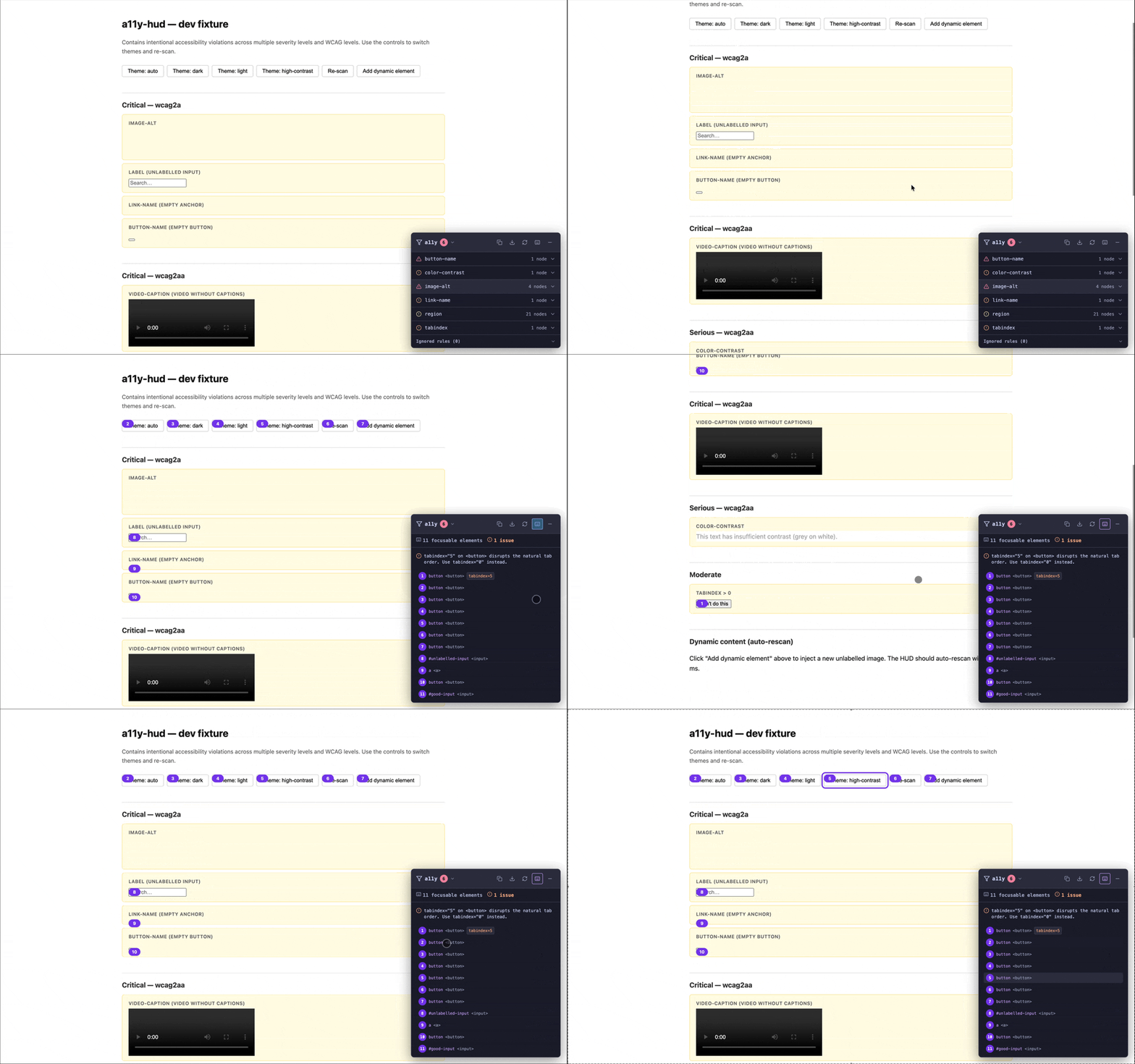
Keyboard mode switches the HUD panel from the violation list to a tab-order view. Numbered badges appear on the page showing each element's keyboard position, and the panel lists every focusable element in tab order.
Activating keyboard mode
Click the keyboard icon (⌨) in the HUD toolbar. The panel switches to keyboard mode. Click it again (or press Escape) to return to the violation view.
Reading the tab-order overlay
Each focusable element on the page gets a numbered badge overlaid at its top-left corner. The number indicates its position in tab order (1-based). Badges use page-relative absolute positioning — they stay in place when you scroll.
The panel lists the same elements by number, along with the element's CSS selector. Clicking an element in the list highlights it on the page.
Detected violations
Keyboard mode automatically checks for three types of issues:
positive-tabindex
An element has tabindex > 0. Positive tabindex values override the natural tab order, making keyboard navigation unpredictable. The fix is almost always to remove the tabindex attribute entirely.
interactive-excluded
An interactive element (<a>, <button>, <input>, etc.) has tabindex="-1", removing it from keyboard navigation. Unless this is intentional (e.g., a managed focus pattern), it means keyboard users cannot reach the element.
no-focusable-elements
The scanned scope contains no focusable elements at all. This is only a violation if the scope is expected to contain interactive content.
Detected violations appear at the top of the keyboard panel, separated from the tab-order list.
Headless API
The keyboard helpers are exported from core for use in tests or scripts.
getFocusableElements(scope)
import { getFocusableElements } from "a11y-hud";

const elements = getFocusableElements(document.body);
// Returns FocusableElementInfo[], sorted by tab order
// (positive tabindex first, then natural document order)

elements.forEach(({ index, selector, tabIndex }) => {
  console.log(`Tab ${index}: ${selector} (tabIndex=${tabIndex})`);
});
detectKeyboardViolations(elements, scope?)
import { getFocusableElements, detectKeyboardViolations } from "a11y-hud";

const elements = getFocusableElements(document.body);
const violations = detectKeyboardViolations(elements, document.body);

violations.forEach(({ type, selector, message }) => {
  console.warn(`[${type}] ${selector}: ${message}`);
});
injectFocusOrderOverlay(elements)
import { getFocusableElements, injectFocusOrderOverlay } from "a11y-hud";

const elements = getFocusableElements(document.body);
injectFocusOrderOverlay(elements);
// Badges are injected into document.body
// Calling again removes and re-injects them
Using keyboard helpers in Playwright
import { test, expect } from "@playwright/test";

test("tab order has no positive-tabindex violations", async ({ page }) => {
  await page.goto("http://localhost:5173");

  const violations = await page.evaluate(async () => {
    const { getFocusableElements, detectKeyboardViolations } = await import(
      "/node_modules/a11y-hud/dist/index.js"
    );
    const elements = getFocusableElements(document.body);
    return detectKeyboardViolations(elements, document.body).map((v) => v.type);
  });

  expect(violations.filter((t) => t === "positive-tabindex")).toHaveLength(0);
});
What keyboard mode doesn't capture
- Keyboard trap detection — whether focus can escape a modal or dialog. axe-core's
scrollable-region-focusablerule partially covers this. - Focus visibility — whether the focus indicator is visible. Use axe's
focus-visiblerule set for that. - Arrow-key navigation — keyboard mode only checks tab order, not ARIA widget patterns (e.g., arrow key navigation inside a listbox). That is covered by axe-core's ARIA rules in the main violation view.
- Keystroke capture — keyboard mode does not intercept keyboard events or simulate key presses.